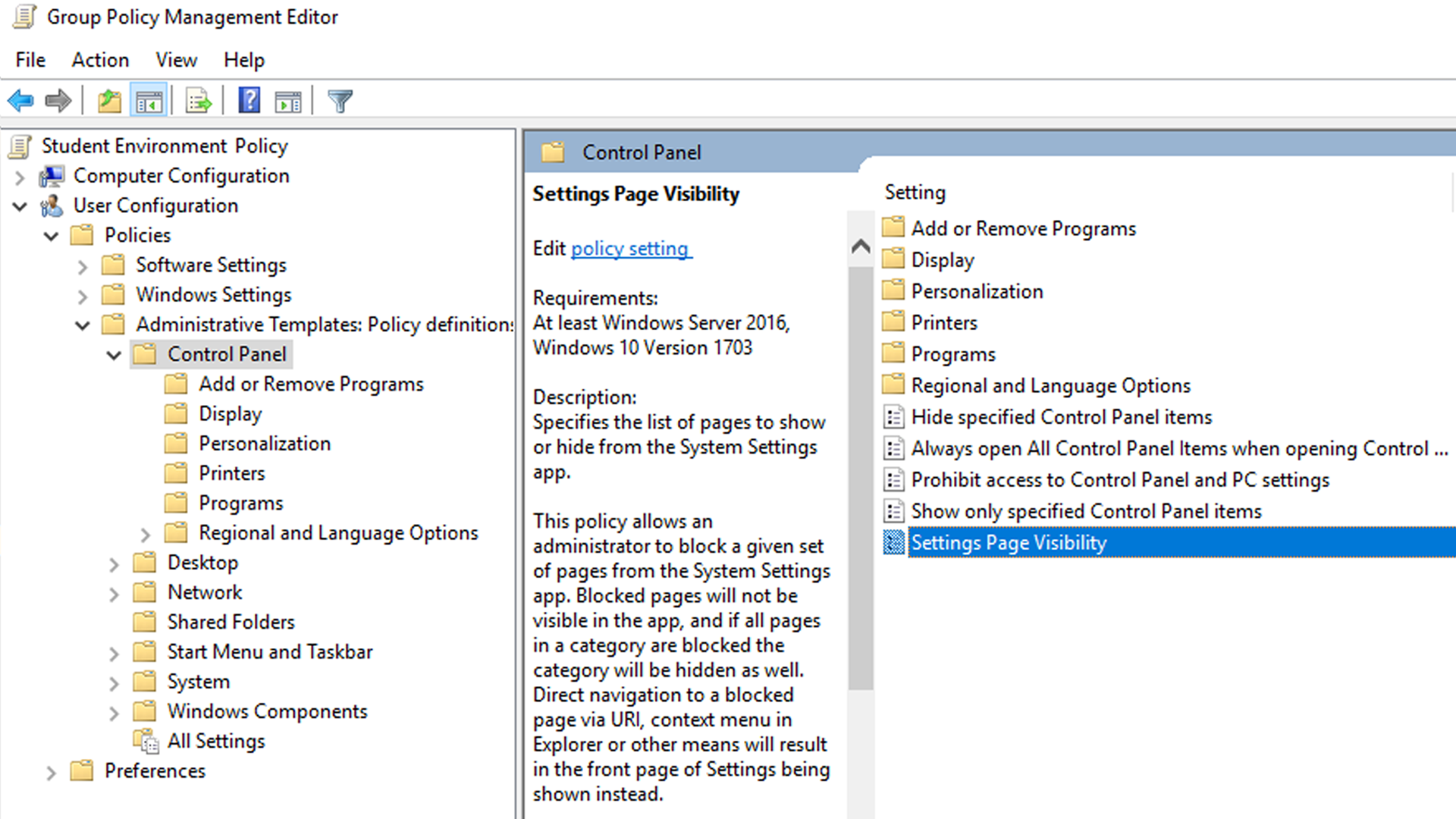
In this article, we’re going to learn how to use an Active Directory Group Policy Object on Windows Server to fully customize which items are accessible in the Windows 10 & 11 Settings app (UWP) and Control Panel.
The issue — you want to enable access to reasonable features such as:
- installing bluetooth devices and printers
- settings for sound/audio, microphone, and camera
But you still want to disable access to administrative features such as:
- installing/removing programs
- system settings
- the Control Panel
The solution — configure a GPO and use the Settings Page Visibility and Show only specified Control Panel items options!
Step 1 — Create a GPO.
On a Domain Controller running Windows Server 2016 or newer, create a new Group Policy Object and then browse to User Configuration > Policies > Administrative Templates > Control Panel.
Step 2 — Showing only specific Control Panel items.
In your GPO’s settings, double-click Show only specified Control Panel items and select Enabled.
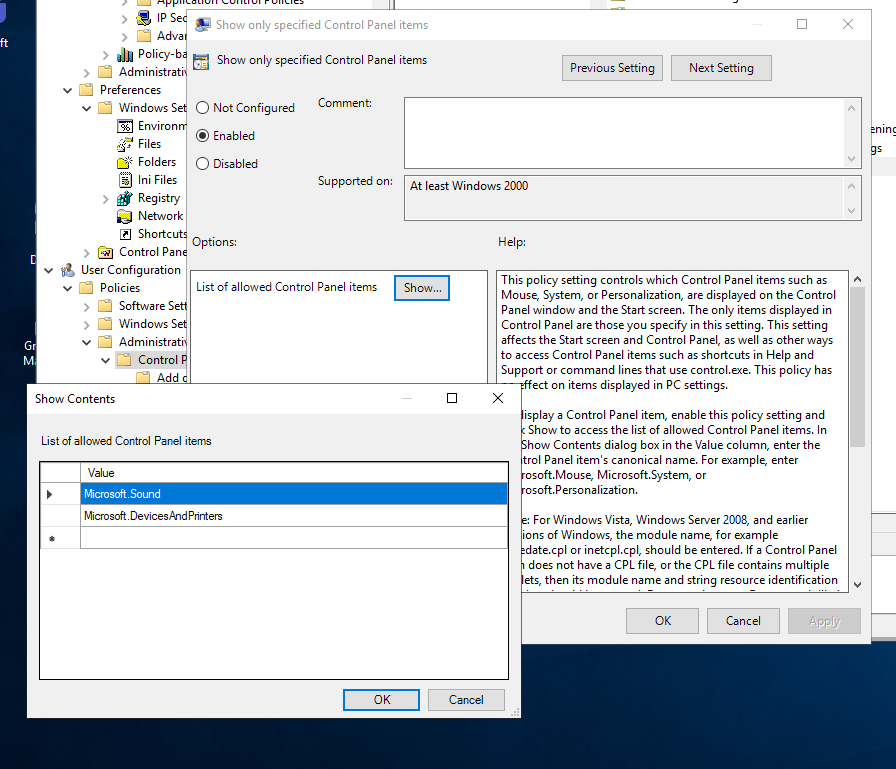 In the Options there will be a line that reads List of allowed Control Panel items, click the Show… button. From there, you can specify the Control Panel items that you want to let users access. Anything you don’t specify will be completely disabled.
- Use this Microsoft Win32 Control Panel reference document to find the canonical names for each specific item that you want to enable.
- For instance, the Sound section can be enabled by adding “Microsoft.Sound” to the list and Devices and Printers can be enabled by adding “Microsoft.DevicesAndPrinters” to the list.
Step 3 — Showing only specific items on the Win10/Win11 Settings page.
In your GPO’s settings, double-click Settings Page Visibility and select Enabled.
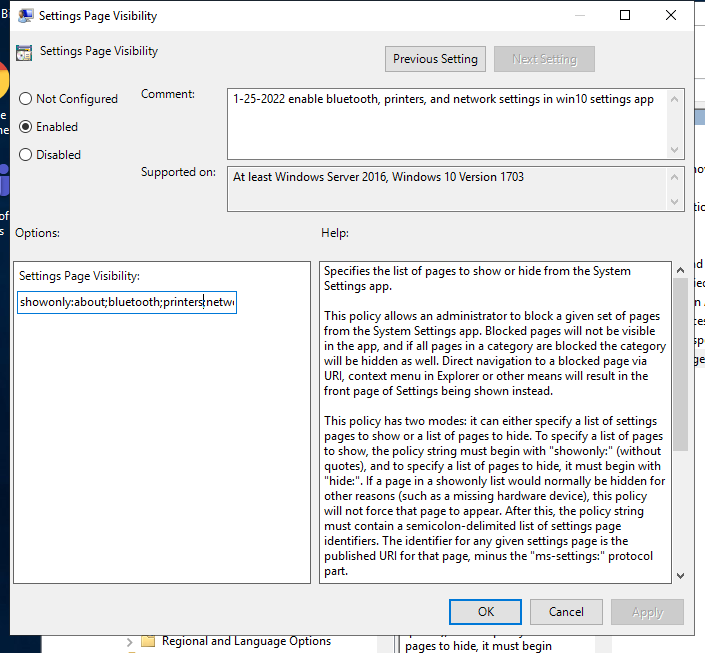 In the Options there will be a list heading that reads Settings Page Visibility with a text entry box below it. In that text entry box, you can specify any of the Win10/Win11 Settings items that you want to let users access. Anything that you don’t specify will be completely disabled.
- Use this Microsoft Universal Windows Platform (UWP) reference document to find the URI for each specific item that you want to enable, then type that into the list (important: leave out the “ms-settings:” for each URI listing).
- For instance, to show only the About, Bluetooth, and Printers options, you would type: “showonly:about;bluetooth;printers” into the text box. You can add as many items to that list as you want, separated by a semicolon—just make sure to leave the semicolon off of the last item in the list.
Final Step — Double-check conflicting listings.
You may have previously configured this GPO or another GPO and set the listing for Prohibit access to Control Panel and PC settings to Enabled, which would override everything else up to this point. Make sure you set that to Disabled or Not configured or nothing above will work!
And that’s it, your users can now access useful items in the Control Panel and Windows Settings app without having access to anything you don’t want them to. Huzzah!